
Ask whether AI has actually reduced your workload, and the answer may not be so clear. Writing is faster, and summaries take seconds. Yet the day still feels just as busy.
The reason is simple. AI may respond in seconds, but people still handle everything around it, from copying data into a chatbot to reusing the same prompt and moving the results back into a spreadsheet. The repetitive work required to use AI has become another task itself.
Instead of asking AI the same things over and over, it may be time to connect AI directly to the workflow. Here are three AI automation recipes you can try without a development background.

All three recipes require two things.
First, you need API access to AI.
With ChatGPT or Claude, you enter prompts yourself. With an API, a spreadsheet or automation tool can send requests to AI and receive the results for you
Second, you need a tool that connects AI to your workflow. You don’t have to write code yourself. Spreadsheet extensions with AI features or automation tools like Zapier, Make, and n8n can connect each step through a visual interface.
💡 If APIs and API keys are still unfamiliar, start with [Do Marketers Really Need This Too? (feat. API Keys, OpenRouter)].
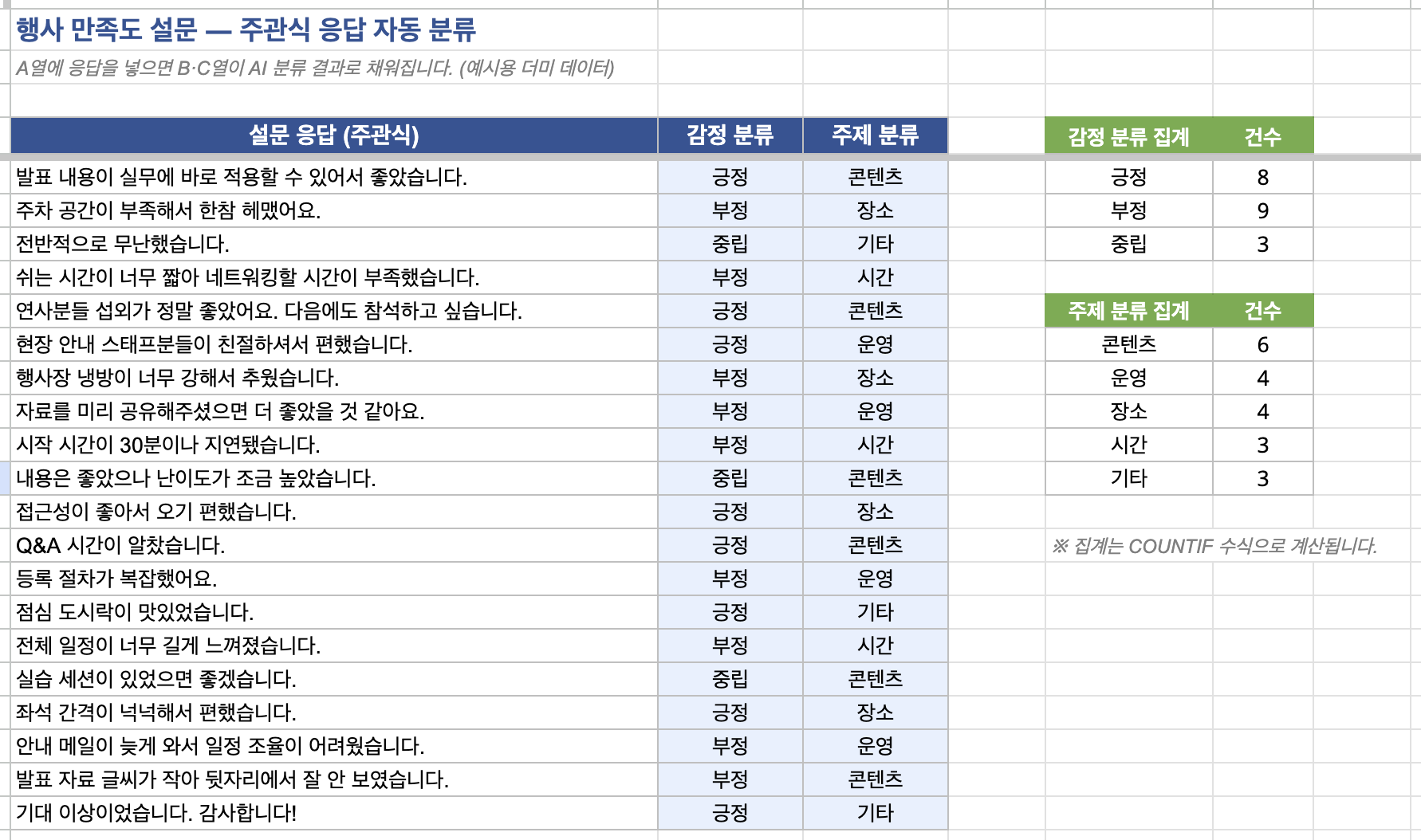
Open-ended responses can pile up quickly from event surveys, internal surveys, training feedback, or customer VOC.
Once there are hundreds of responses, reading, classifying, and finding repeated themes takes time. A chatbot can help, but if you still have to copy data in and move the results back to a sheet, it’s a good candidate for automation.
Survey responses → Spreadsheet → AI classification → Save results → Pivot/chart analysis
Each spreadsheet response can be sent to AI and classified using set criteria. For example:
Analyze the response below.
[Sentiment] Positive / Negative / Neutral
[Topic] Service / Operations / Environment / Schedule / Other
Response:
{{Response}}
The key is to define the output format in advance.
Instead of simply asking AI to “analyze this response,” set clear options so the results are easier to aggregate without extra cleanup. Categories can also change by task. For customer VOC, you might use Feature / Pricing / Bug / Inquiry. For an internal survey, you could use Work Environment / Benefits / Culture / Other.
Reviewing inquiries from email or forms, summarizing the key points, and forwarding them to the right person is another common repetitive task.
It may take only a few minutes per inquiry, but when it happens every day, automation can save a lot of time.
Customer inquiry → Automation tool → AI summary & classification → Slack alert
When a new inquiry arrives, AI can classify its type and urgency, summarize the key points, and send it to a designated channel.
Organize the inquiry below.
[Type] Product / Billing / Technical / Partnership / Other
[Urgency] High / Medium / Low
[Summary] Summarize the key point in one sentence
Inquiry:
{{Inquiry}}
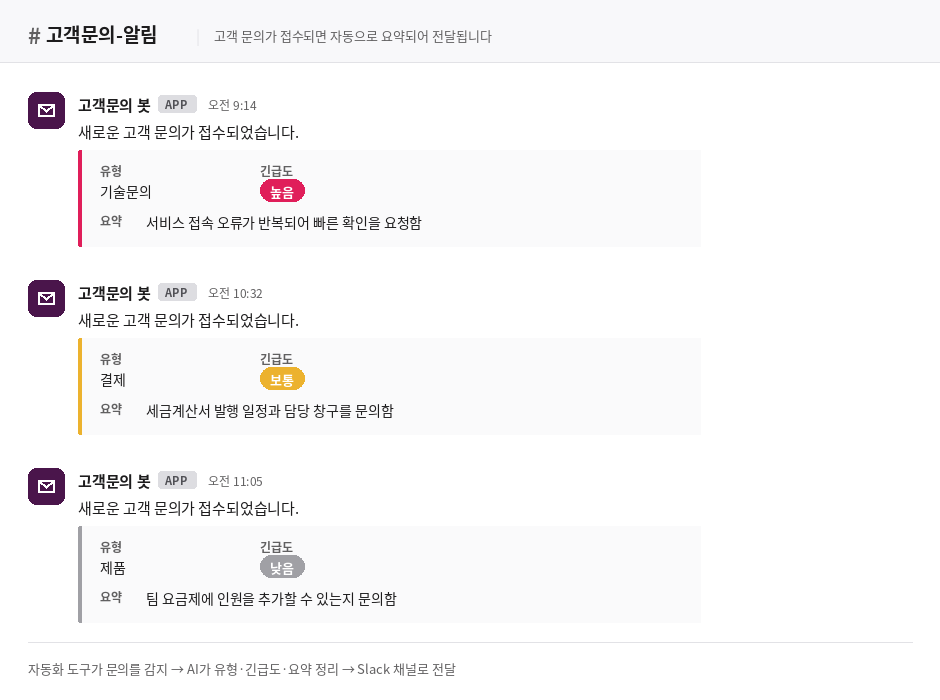
You can also use the AI classification as a trigger for the next automation step.
For example, high-urgency inquiries could mention the person in charge, while partnership inquiries could go directly to the sales channel. AI then does more than summarize. It also helps decide where each inquiry goes and what should be reviewed first.
Teams often review and organize similar documents over and over, such as meeting notes, reports, proposals, and research materials. Summarizing one document with a chatbot is easy. But if you open a new file every week, reuse the same prompt, and move the results into another tool, that process can also be automated.
Upload document → AI analysis → Extract key information → Save to spreadsheet or collaboration tool
For example, each new meeting note or report can be organized in a set format like this:
Organize the document below.
[Key Points] Within 3 lines
[Action Items] List all action items
[Owner] Include if stated
[Deadline] Include if stated
Content:
{{Document}}
The format can be adjusted for different teams.
Sales teams might extract Customer Needs / Products of Interest / Next Steps. HR teams could use Key Feedback / Requests / Items to Review. Operations teams might use Issue / Cause / Action Taken.
In other words, instead of simply asking AI to “summarize this,” you ask it to extract only the information you need in a set structure.
Before setting up an automation, check these three things.
First, test with a small amount of data. Start with 10 to 20 items instead of hundreds. Check the output format and usage before scaling up.
Second, check what data is being sent to AI. Surveys, inquiries, and internal documents may contain personal or confidential information. Remove identifiers that aren’t needed and review both the AI service’s data policy and your company’s internal rules.
Third, keep a review step. AI classifications won’t always be accurate. Check a sample of the results. If errors keep appearing, adjust the criteria and prompt before switching models.
AI automation may sound like a complex system, but it can start much smaller. If you copy survey responses every time, connect that process. If every new inquiry is organized in the same format, automate that flow. If you extract the same fields from every meeting note, that’s another good candidate.
You don’t need to automate everything. Think back on your day and ask:
| “Didn’t I do this exact same thing today?”
If something comes to mind, start there.
What matters isn’t using more AI. It’s finding the work people shouldn’t have to repeat in the first place.
Yes. Spreadsheet extensions with AI features and no-code automation tools can connect workflows without writing code. You may still need to set up API connections and permissions at the beginning.
It depends on the model, number of requests, and amount of data processed. Start small, check actual usage and costs, then scale up.
As automation and API use grow across your team, tracking usage and costs by model becomes more important. If you want to manage multiple AI models, usage, and costs at the organizational level, check out Runyour Agent.


![[Runyour Cloud October Update] Efficient resource utilization with integrated MIG technology for GPU partitioning](https://cdn.prod.website-files.com/659faaa08c491caeb4e3f8a3/6ae7f5f5d3a8fbe029cfc8a5_%EC%A0%95%EC%82%AC%EA%B0%81_261026_%ED%81%B4%EB%9D%BC%EC%9A%B0%EB%93%9C%2010%EC%9B%94%20%EB%A6%B4%EB%A6%AC%EC%A6%88%202.png)
![[Runyour Cloud October Update] Monitor your organization's GPU usage at a glance with operational reports](https://cdn.prod.website-files.com/659faaa08c491caeb4e3f8a3/6ae7f5dcdd229cd3f4a5a094_%EC%A0%95%EC%82%AC%EA%B0%81_261026_%ED%81%B4%EB%9D%BC%EC%9A%B0%EB%93%9C%2010%EC%9B%94%20%EB%A6%B4%EB%A6%AC%EC%A6%88%201.png)
![[Runyour Agent October Update] Block sensitive information in advance and align AI models with organizational policies](https://cdn.prod.website-files.com/659faaa08c491caeb4e3f8a3/6ae7f554d5d7d3e0a4595c35_%EC%A0%95%EC%82%AC%EA%B0%81_261026_%EC%97%90%EC%9D%B4%EC%A0%84%ED%8A%B8%2010%EC%9B%94%20%EB%A6%B4%EB%A6%AC%EC%A6%88%202.png)