We are the Runyour team.
Sometimes, assigning a high-performance GPU to a single task feels like overkill, but sharing it across multiple tasks leaves you wondering how to best distribute the resources.
Even if you own a GPU, the resource requirements for each task vary, which can often lead to some capacity sitting idle and underutilized.
Starting with our October update, Runyour Cloud now supports MIG (GPU partitioning).You can now split a single GPU into multiple independent instances, allowing for more precise allocation of resources to each of your work environments.
Shall we take a look at the newly added MIG feature?
1. Can you really split one GPU into multiple parts?
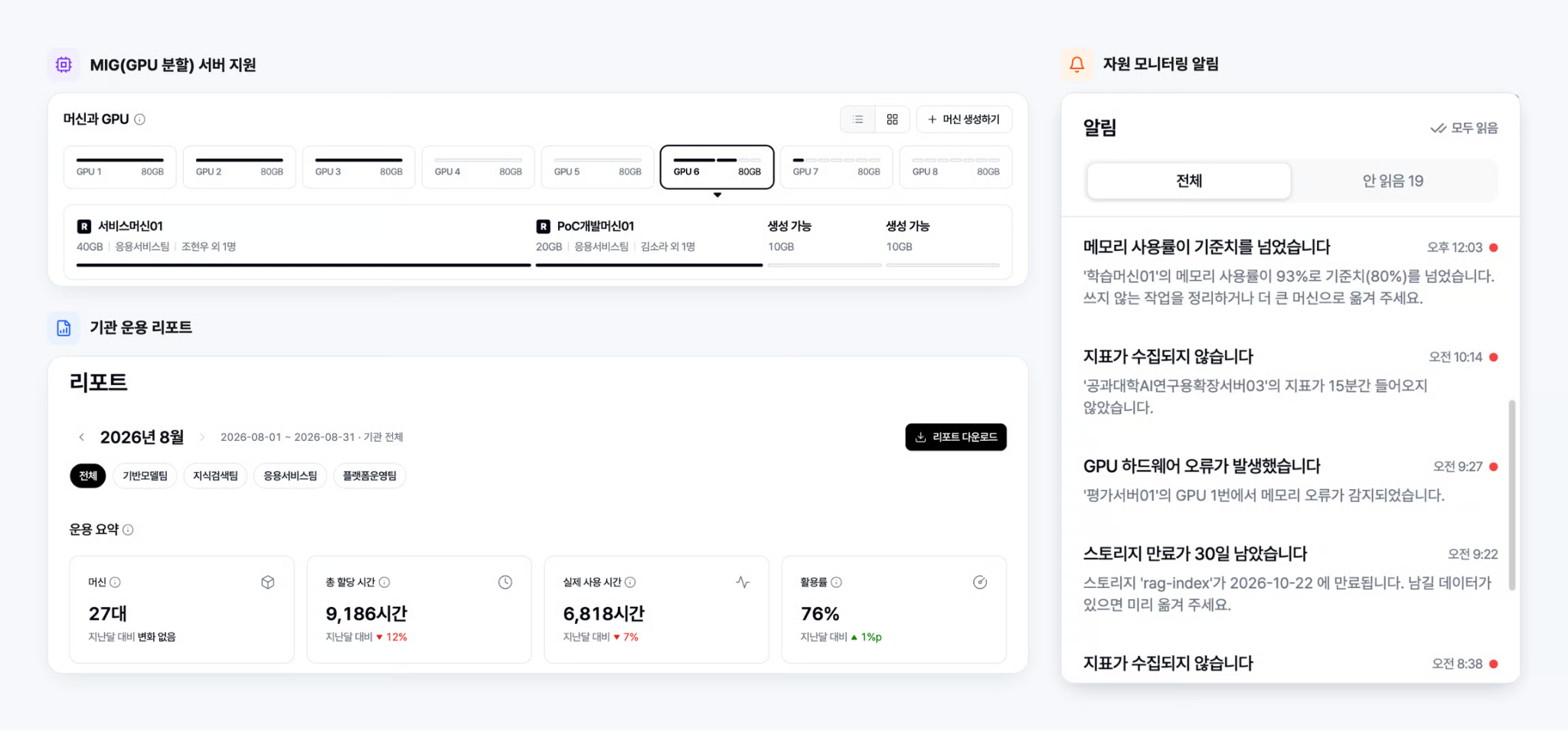
MIG (Multi-Instance GPU) is a technology that allows you to divide a single GPU into several independent GPU instances.
In simple terms, it’s a way of partitioning a single GPU into multiple "slots," allocating exactly what is needed for each work environment.
Because each instance is configured to use isolated resources, multiple work environments can share a single GPU without interfering with one another.
This allows you to utilize your existing resources much more flexibly in GPU environments that support MIG.
In Runyour Cloud, you can view the partitioning status for each GPU in the 'Machine and GPU' section of the server details screen.
You can see at a glance how many instances a GPU is divided into, the size of each instance, and which instances are currently in use or available to be created.
2. Select exactly what you need and deploy it to your machine.
Once you've checked the GPU partitioning status, it's time to allocate the resources required for your actual tasks.
In Runyour Cloud, You can manually select the GPU instance to use directly.
when creating a machine. You can also create machines from the server details screen and assign them to groups, allowing for even more granular allocation of GPU resources for your work environments.
You can also monitor the usage status of your allocated GPU instances.
In detailed machine monitoring, VRAM usage based on the instance is displayed, and general members with access to the machine can also view it.
Additionally, you can filter the resource list by MIG server status and GPU type, making it easier to find the resources you need.
3. Reclaim GPU resources after use
Since GPUs are shared across multiple work environments, the process of reclaiming resources after use is just as important.
In Runyour Cloud, When you unregister or delete a machine, the GPU instances assigned to that machine are returned.
Returned instances become available for selection again, allowing them to be reassigned to other work environments.
Instead of assigning an entire GPU, you can divide it into units required for your tasks and redistribute instances once they are no longer in use.
This helps you maximize the utilization of your existing GPU resources.
4. Check machine status more clearly
Along with MIG server support, we have improved the usability of the machine management screen.
In particular, we have changed the machine status, previously displayed as 'Unassigned,' to be categorized into 'Before Deployment' and 'User Unassigned.'
You can now distinguish between machines that have not yet been deployed to a group and those that have been deployed but have no assigned user.
We have also improved machine information, permission settings, and the usability of the list screen to make resource management more convenient.
With this October update, you can now more conveniently manage partitioned resources on GPU servers that support MIG within Runyour Cloud.
From checking the status of each GPU instance to creating and deploying machines, monitoring usage, and returning resources, everything is handled within a single platform.
If you have servers that support MIG, select a GPU instance on Runyour Cloud now and allocate it to your required work environment.
We’ll keep improving Runyour Agent to help organizations use AI securely and maintain control.